BTSxAPPLEMUSIC
Your source for info on listening to BTS on Apple Music!
New single, Butter, out May 21.
HAVE MORE QUESTIONS?
If you have more questions, I'm more than happy to answer them through Twitter DMs. Get in touch with me below.
BTSxAPPLEMUSIC
STREAMING GUIDES
General Guide
Create a playlist centred on the latest single/album. Add 1-2 (not 2-3 or 3-4) other BTS songs, collabs or other artists in between the focus song. DON'T set the playlist to repeat or leave on must and pause/stop every so often. Do NOT play continuously on mute. When adding multiple of the same song to the playlist, do NOT shuffle.
The songs MUST be from Apple Music NOT iTunes! Purchasing songs on iTunes helps BTS chart globally with their songs and albums and helps their Billboard charting positions. But songs purchased via iTunes do NOT count for streams! iTunes songs must be DELETED from your library (not just download removed) to guarantee your plays are being counted as Apple Music STREAMS.
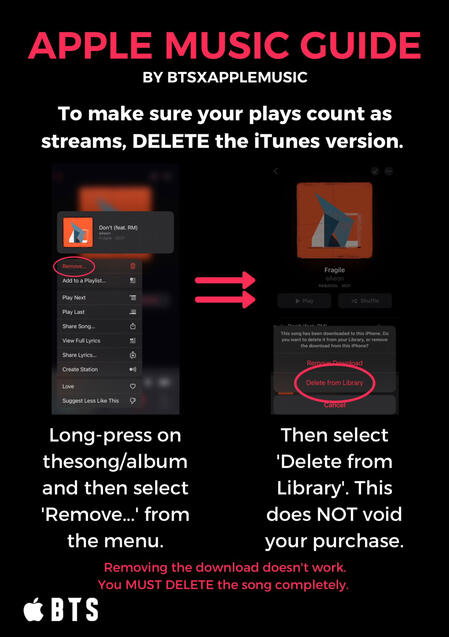
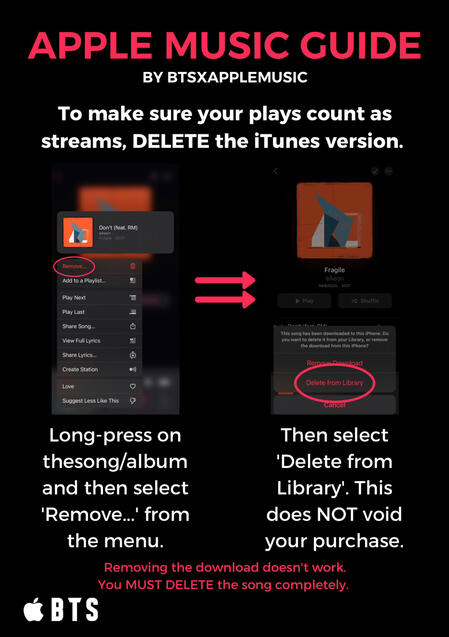
To DELETE the iTunes version:
Long-press (or select the '...' on) the song/album and then select 'Remove...' from the menu. Then select 'Delete from Library'. This does NOT void your purchase. Only removing the download doesn't work.
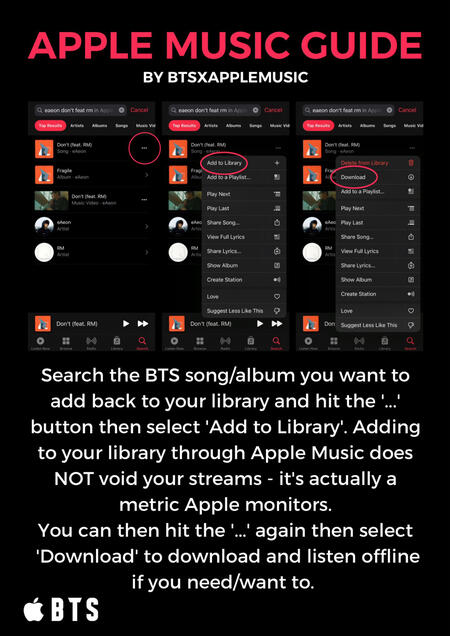
To add the song/album back to your library:
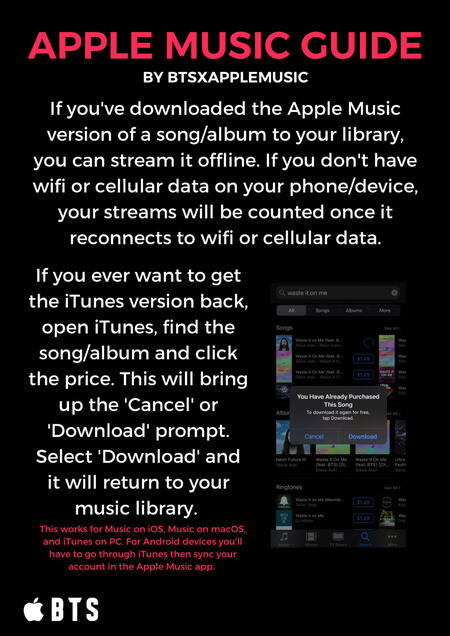
Search the BTS song/album you want to add back to your library and select the '...' on the song/album, then select 'Add to Library'. Adding to your library through Apple Music does NOT void your streams - it's actually a metric Apple monitors. You can then select the '...' again and then select 'Download' to download and listen offline if you need/want to. If you've downloaded the Apple Music version of a song/album to your library, you can stream it offline. If you don't have wifi or cellular data on your phone/device, your streams will be counted once it reconnects to wifi or cellular data.
If you ever want to get the iTunes version back, open iTunes, find the song/album and click the price. This will bring up a notification that you've already purchased it and give you the option to select 'Cancel' or 'Download'. Select 'Download' and it will return to your music library. (This works for Music on iOS and macOS and iTunes on PC.)
Streaming Offline
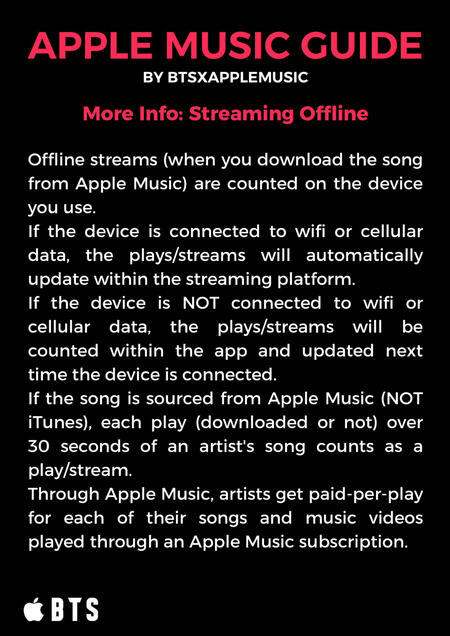
Offline streams (when you download the song from Apple Music) are counted on the device you use. If the device is connected to wifi or cellular data, the plays/streams will automatically update within the streaming platform. If the device is NOT connected to wifi or cellular data, the plays/streams will be counted within the app and updated next time the device is connected.
If the song is sourced from Apple Music (NOT iTunes), each play over 30 seconds of an artist's song counts as a play/stream. Through Apple Music, artists get paid-per-play for each of their songs and music videos played through an Apple Music subscription.
snd.wave
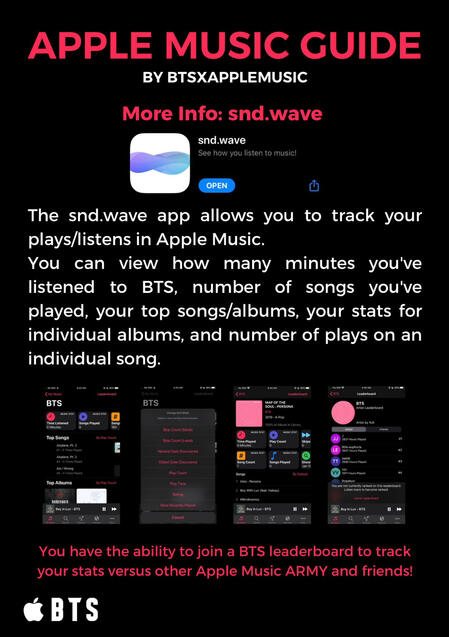
The snd.wave app allows you to track your plays/listens in Apple Music. You can view how many minutes you've listened to BTS, number of songs you've played, your top songs/albums, your stats for individual albums, and number of plays on an individual song. Through the snd.wave app, you have the ability to join a BTS leaderboard to track your stats versus other Apple Music ARMY and friends!
iTunes vs Apple Music
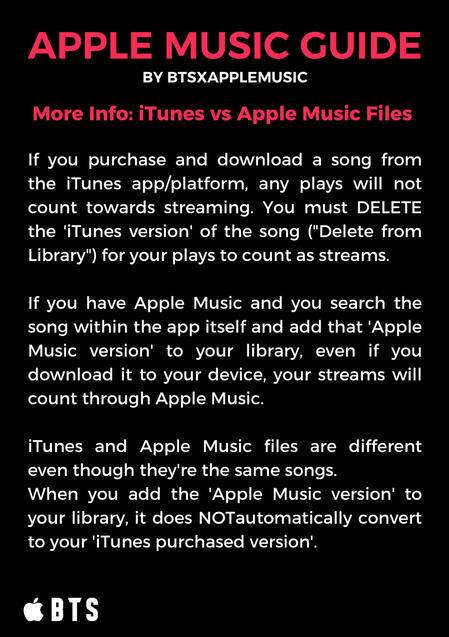
If you purchase and download a song from the iTunes app/platform, any plays will not count towards streaming. You must DELETE the 'iTunes version' of the song ("Delete from Library") for your plays to count as streams. If you have Apple Music and you search the song within the app itself and add that 'Apple Music version' to your library, even if you download it to your device, your streams will count through Apple Music.
iTunes and Apple Music files are different even though they're the same songs. When you add the 'Apple Music version' to your library, it does NOT automatically convert to your 'iTunes version'.
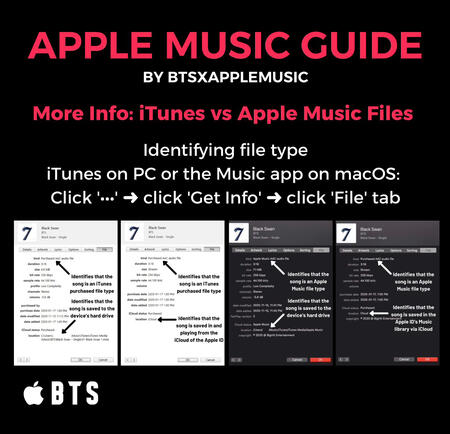
To identify a song's file type through iTunes on Windows/PC or Music on macOS:
Select '...' on the song, then select 'Get Info', then select the 'File' tab.
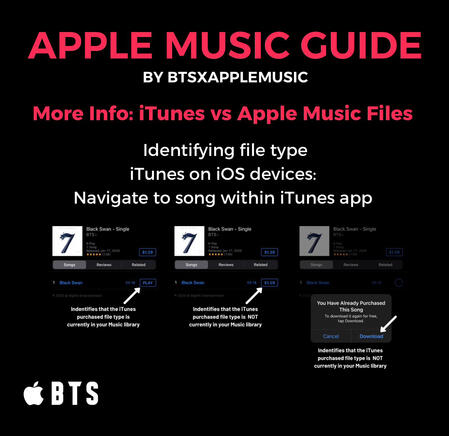
To identify a song's file type through the iTunes app on iOS devices:
Navigate to the song within the iTunes app. If the button next to the song says "play", the iTunes version is currently in your library. If the button shows the price or says "purchased", the iTunes version is NOT in your library.
How Apple Music Works
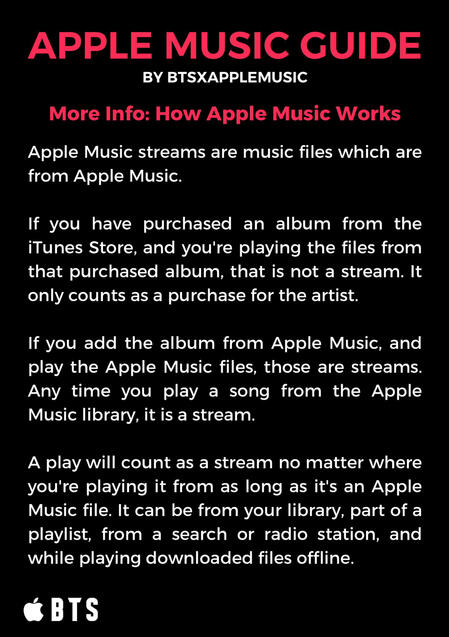
Apple Music streams are music files which are from Apple Music.
If you have purchased an album from the iTunes Store, and you're playing the files from that purchased album, that is not a stream. It only counts as a purchase for the artist.
If you add the album from Apple Music, and play the Apple Music files, those are streams. Any time you play a song from the Apple Music library, it is a stream.
A play will count as a stream no matter where you're playing it from as long as it's an Apple Music file. It can be from your library, part of a playlist, from a search or radio station, and while playing downloaded files offline.
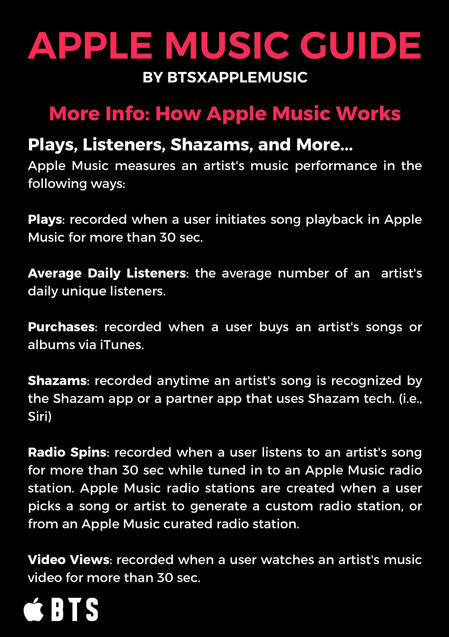
Apple Music measures an artist's music performance in the following ways:
PLAYS: recorded when a user initiates song playback in Apple Music for more than 30 seconds.
AVERAGE DAILY LISTENERS: the average number of an artist's daily unique listeners.
PURCHASES: recorded when a user buys an artist's songs or albums via iTunes.
SHAZAMS: recorded anytime an artist's song is recognized by the Shazam app or a partner app that uses Shazam technology (ex. Siri).
RADIO SPINS: recorded when a user listens to an artist's song for more than 30 seconds while tuned into an Apple Music radio station. Apple Music radio stations are created when a user picks a song or artist to generate a custom radio station, or from an Apple Music curated radio station.
VIDEO VIEWS: recorded when a user watches an artist's music video for more than 30 seconds.
© BTSxAM. All rights reserved. Images by BTSxAppleMusic.